


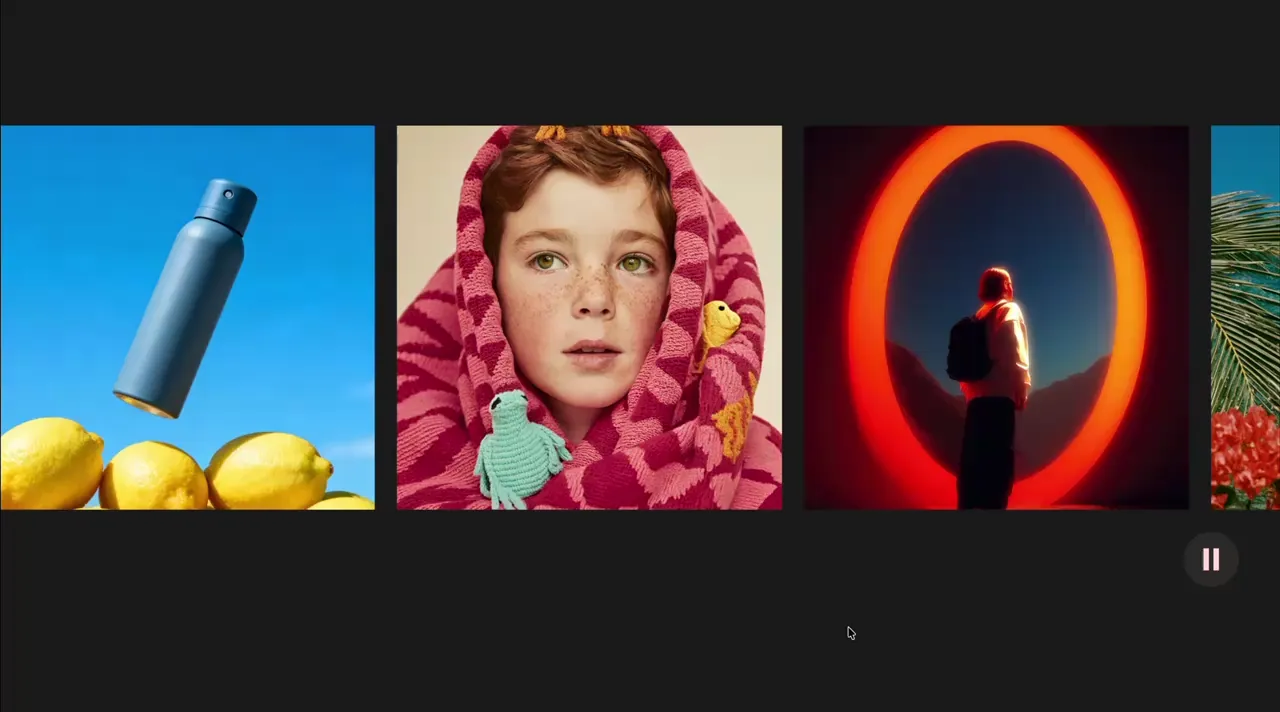
Draggable Marquee
Marquee
Draggable
GSAP
Observer
JS
marquee-4
Component

Fetch Modal
Modal
GSAP
JS
CMS
modal-2
Component
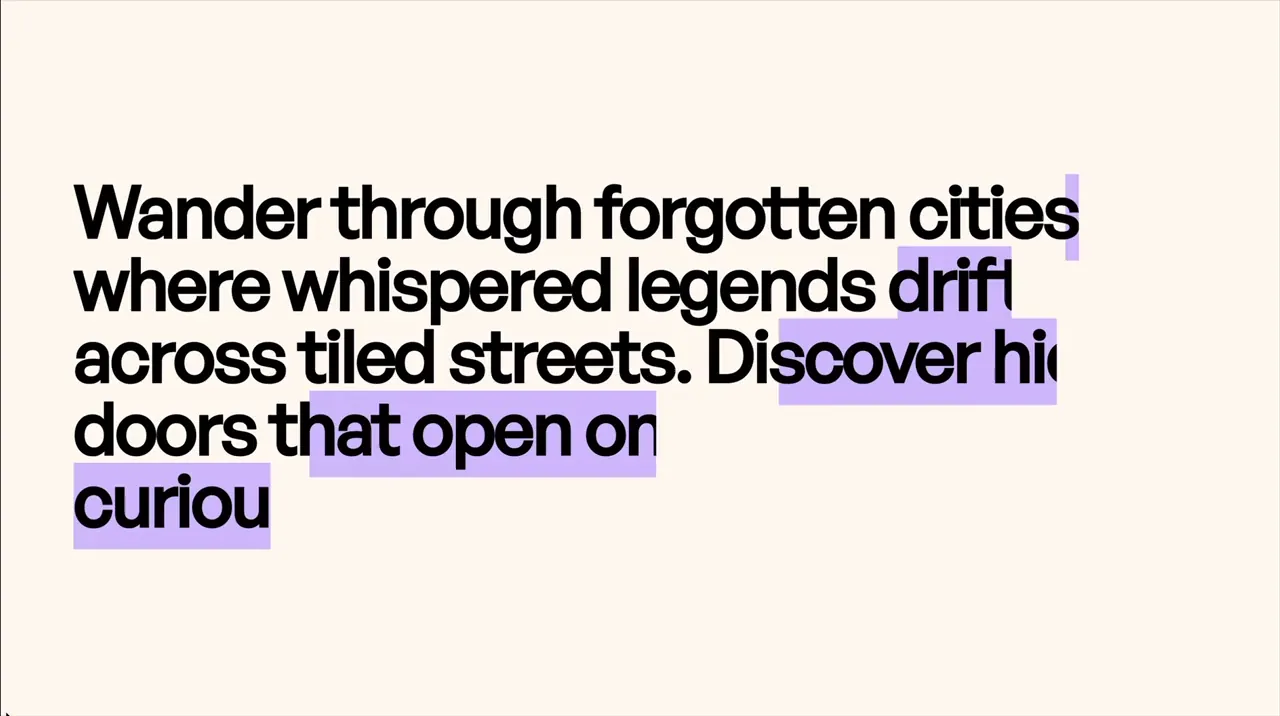
Text Line Animation Color Reveal
Scroll
Text Animation
GSAP
ScrollTrigger
Split Text
JS
CSS
scroll-6
Component

Tooltip Simple
Tooltip
Hover
Utility
JS Library
JS
CSS
tooltip-1
Component

Inline Image and Text
Layout
Style Panel
Custom Element
layout-1
Component
Marquee Vertical Item Progress
Marquee
Loop
GSAP
JS
CMS
marquee-3
Component
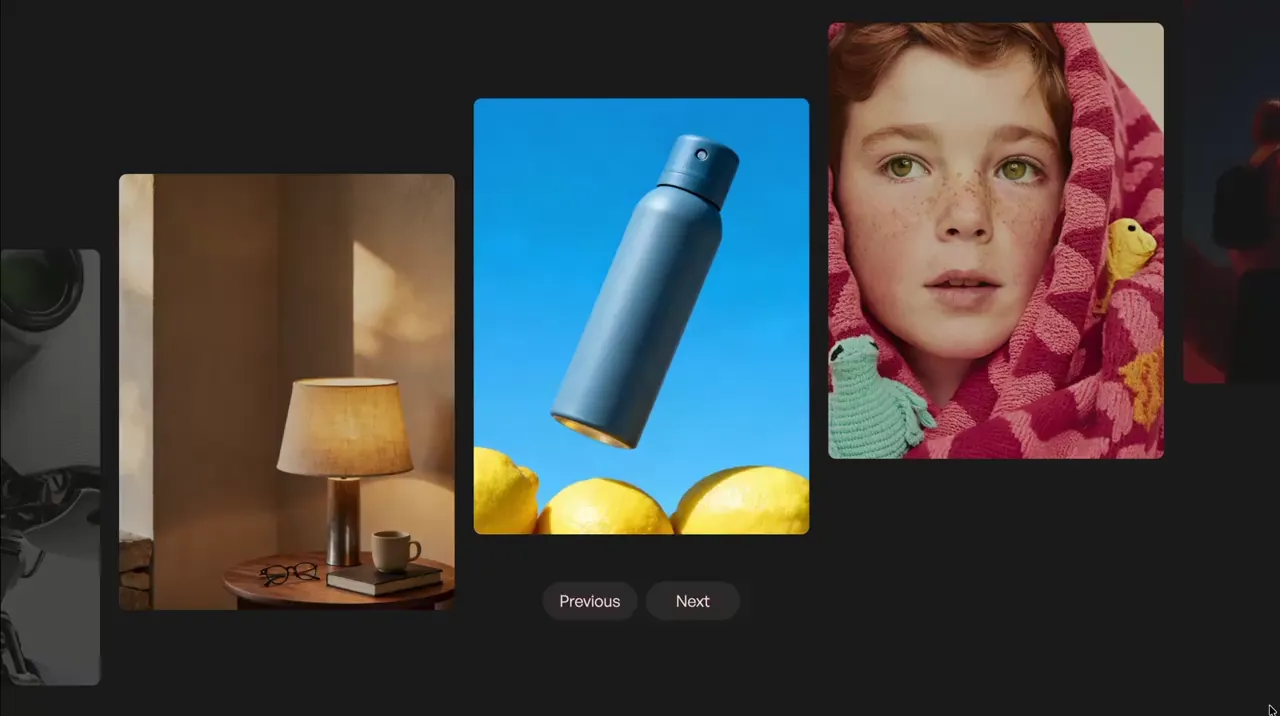
Parallax Slider
Slider
Scroll
Swiper
GSAP
JS
CMS
slider-5
Component
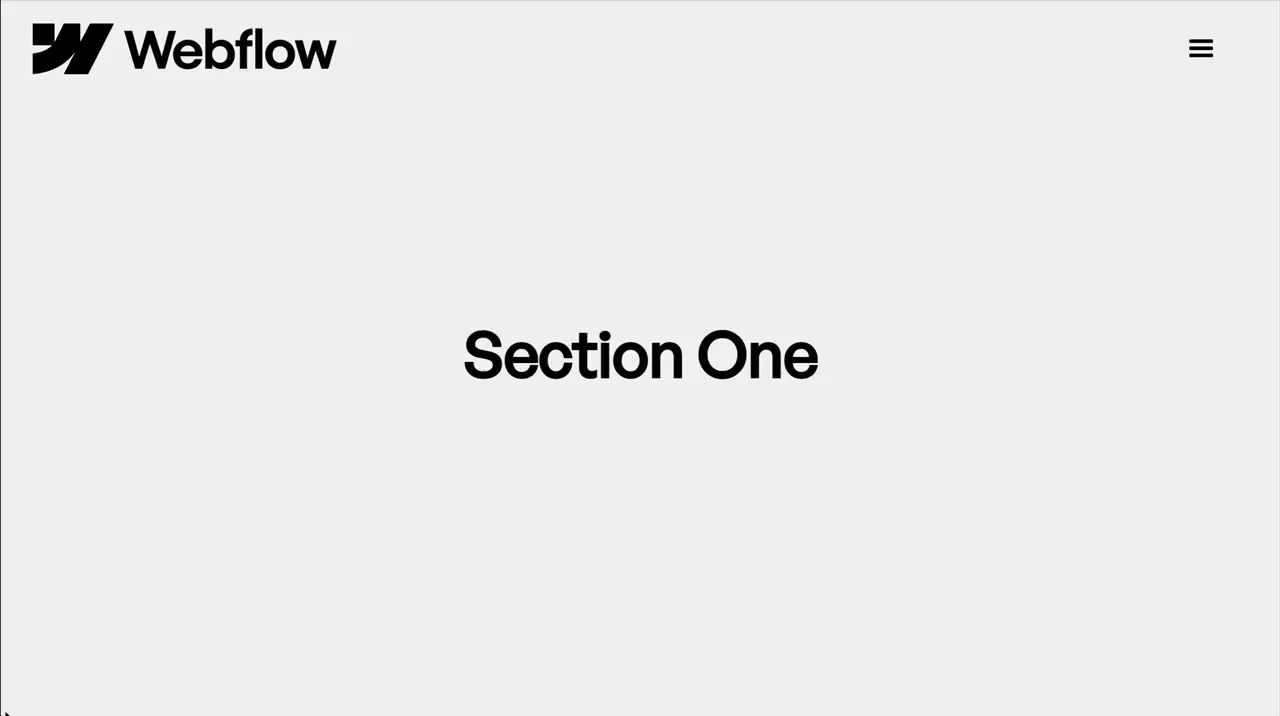
Animate Nav When Scrolled To Page Top
Nav
Scroll
Utility
GSAP
ScrollTrigger
JS
CSS
nav-2
Component
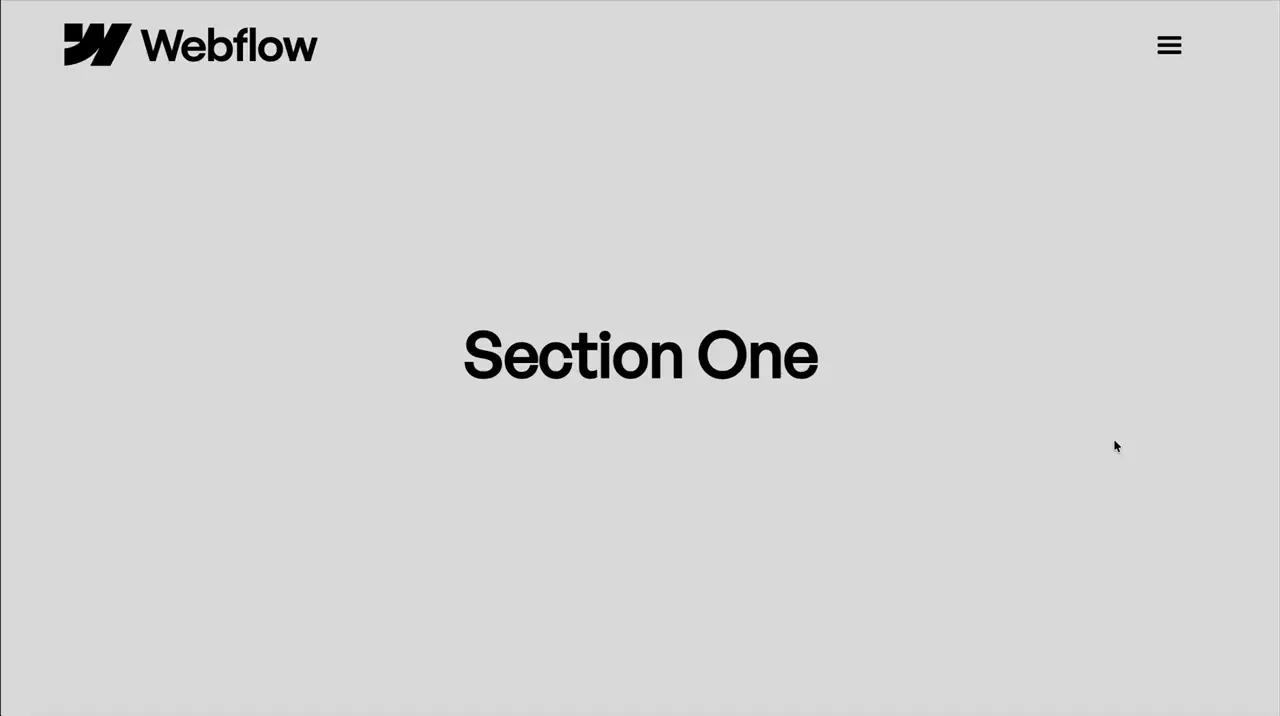
Hide & Show Nav From Scroll Direction
Nav
Scroll
Utility
GSAP
ScrollTrigger
JS
CSS
nav-1
Component
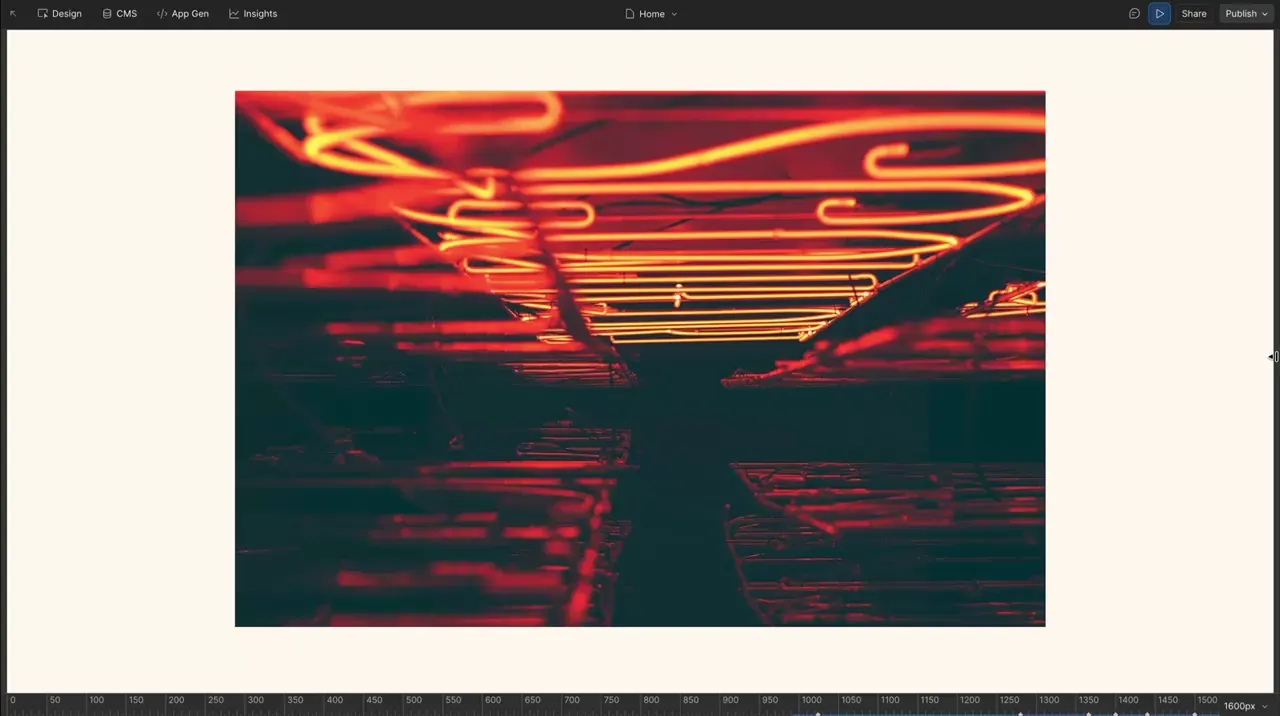
Picture Tag
Layout
Image
Responsive
Custom Element
CMS
picture-1
Component
Letter Stagger Hover
Button
Hover
Text Animation
CSS
GSAP
Split Text
JS
hover-6
Component
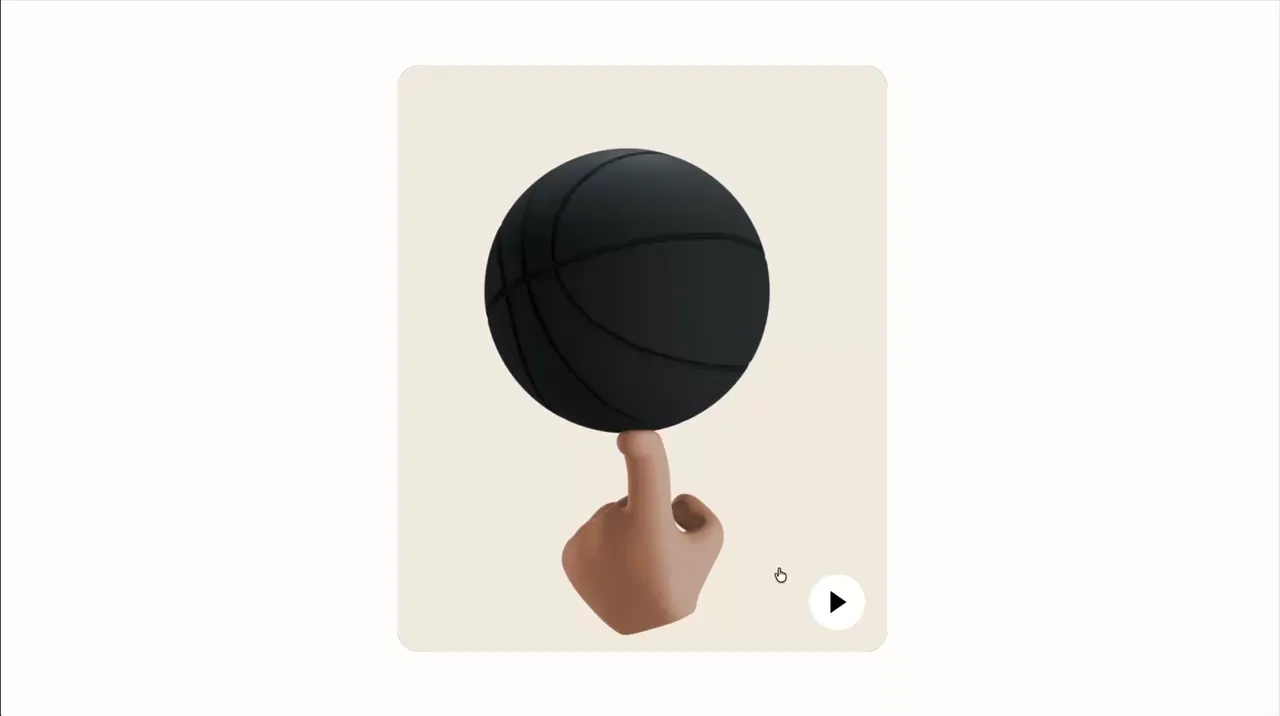
Inline Video
Video
CSS
JS
CMS
video-1
Component
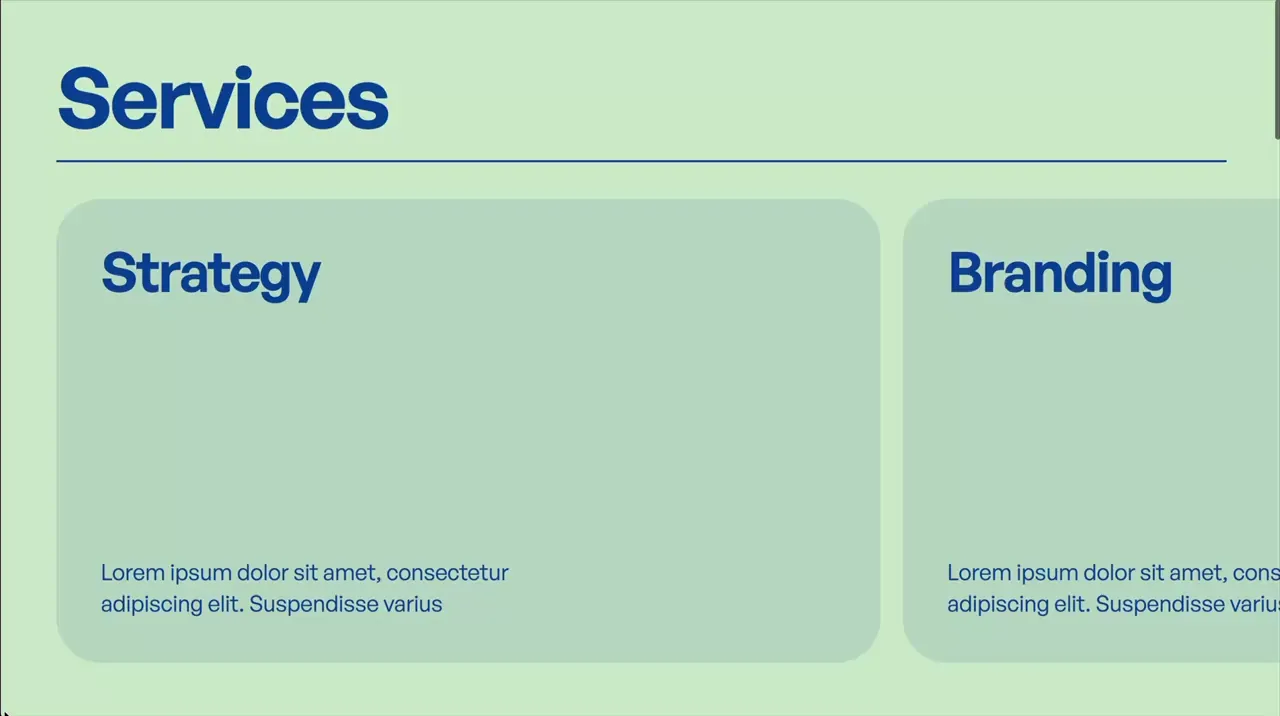
Horizontal Scroll
Scroll
GSAP
ScrollTrigger
JS
CMS
scroll-5
Component

Slider Testimonial Text Stagger
Slider
Text Animation
Swiper
JS
GSAP
Split Text
CMS
slider-4
Component
Right Click, Copy Logo As SVG
Utility
Nav
GSAP
JS
SVG
utility-1
Component
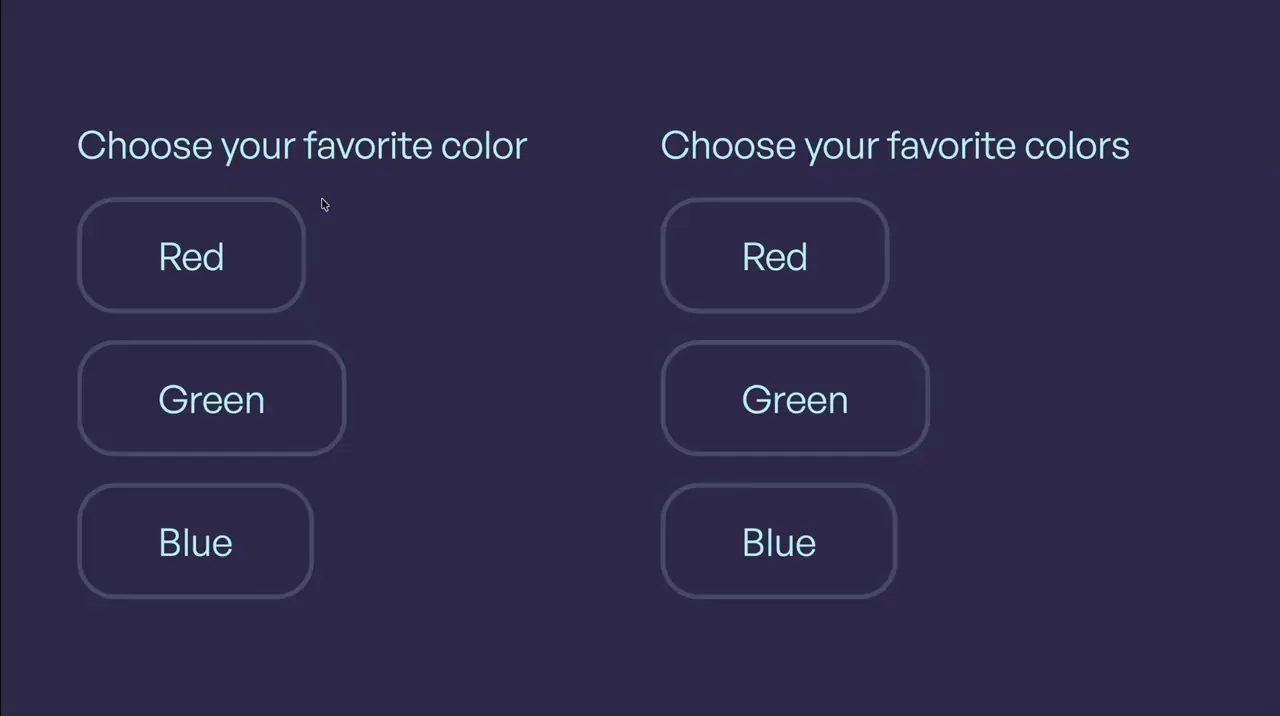
Clip-Path Inputs
Input
Form
Clip-Path
CSS
JS
input-3
Component
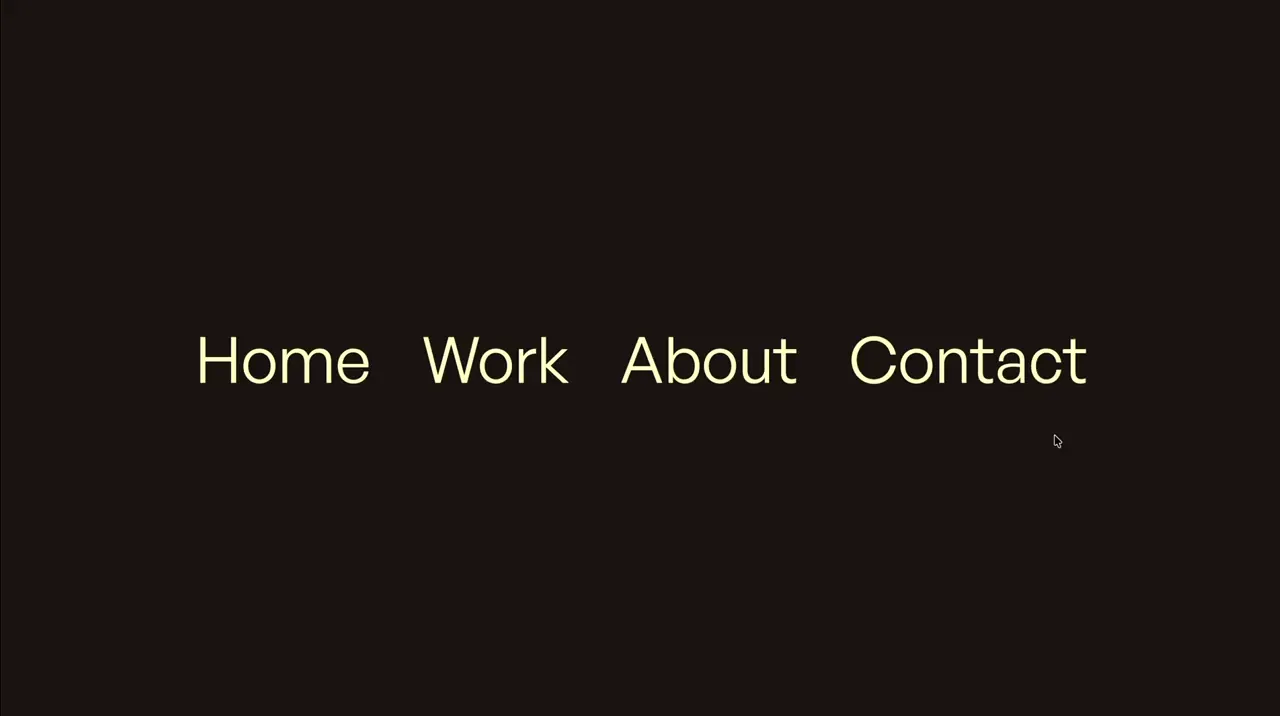
Sibling Hover Fade
Hover
CSS
CMS
hover-5
Component
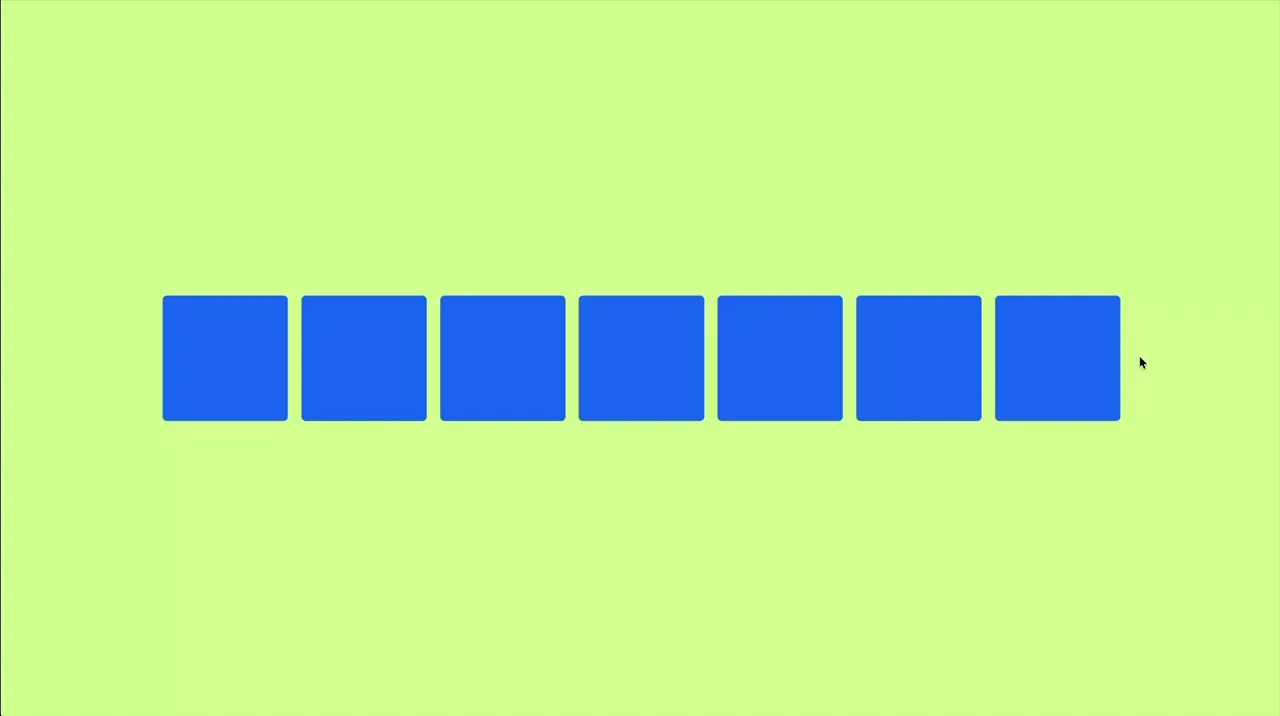
Sibling Hover
Hover
CSS
hover-4
Component

Circle Ring Path Hover
Hover
SVG
CSS
hover-3
Component
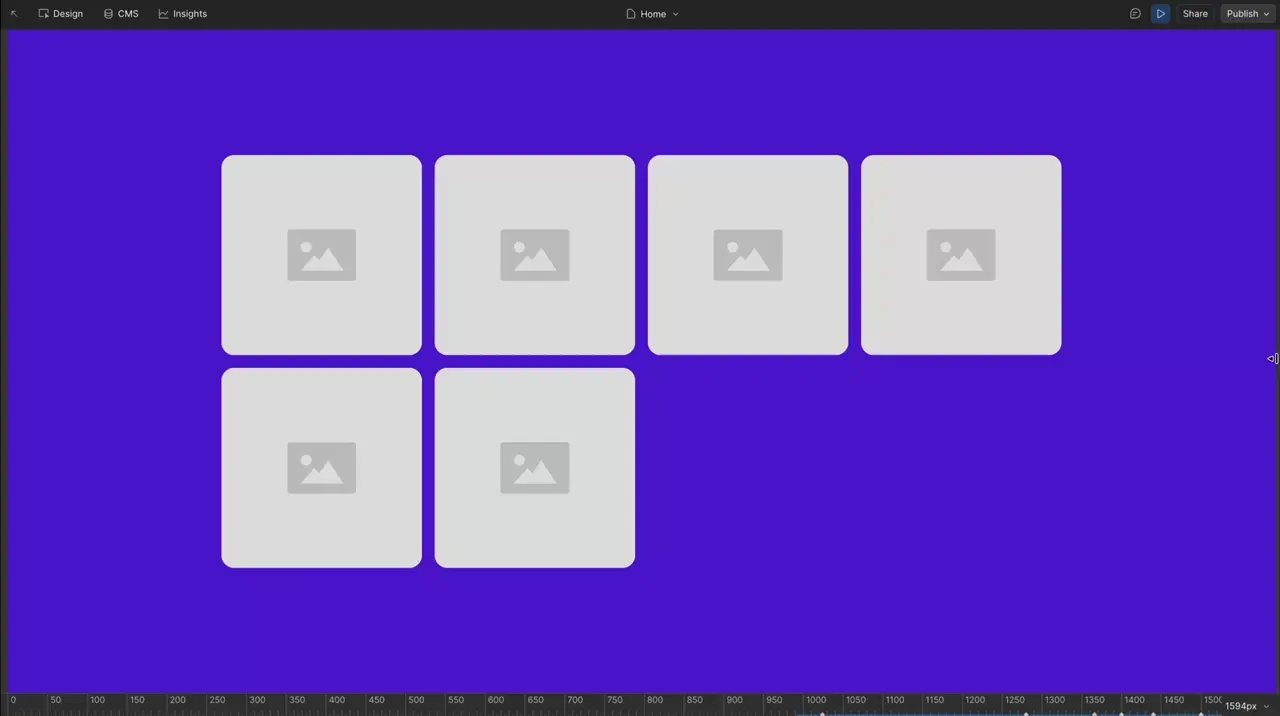
Autofit Grid
Layout
Responsive
Style Panel
CMS
grid-2
Component
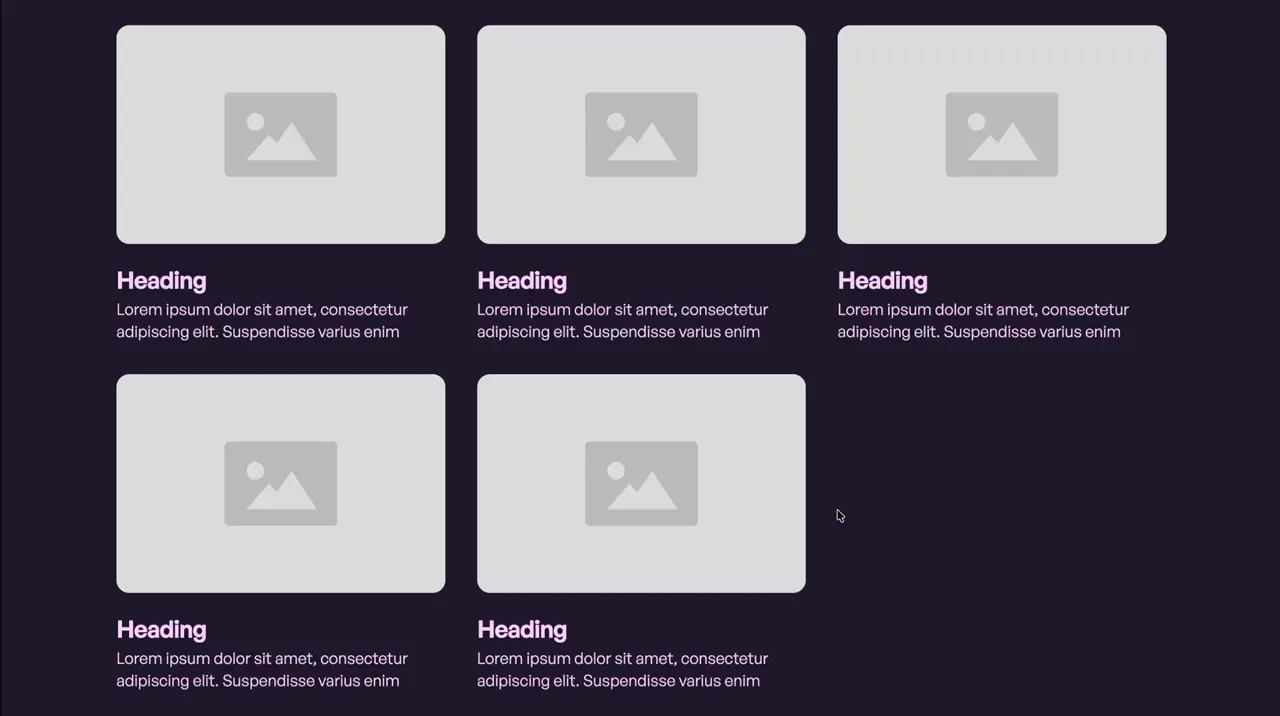
Hover Background Flip
Hover
GSAP
FLIP
JS
CMS
hover-2
Component
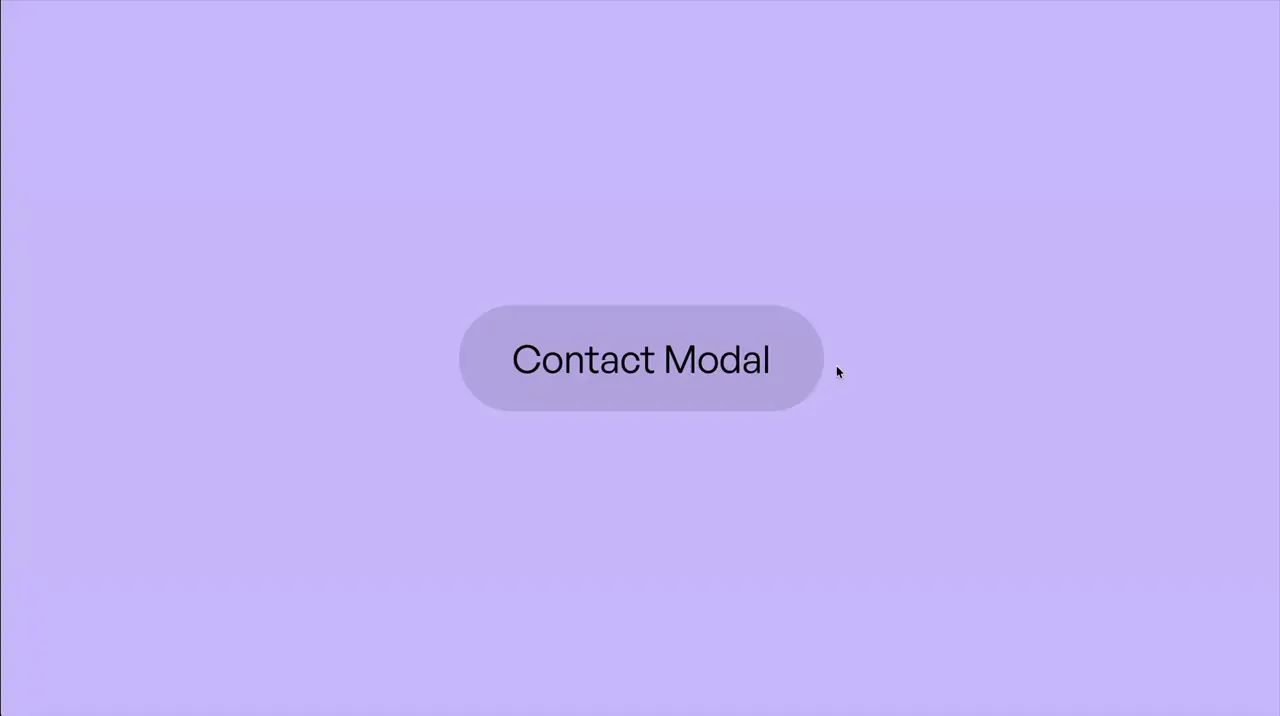
Modal Simple
Modal
GSAP
JS
CMS
modal-1
Component

Coverflow Overlap
Slider
Swiper
JS
CMS
slider-3
Component
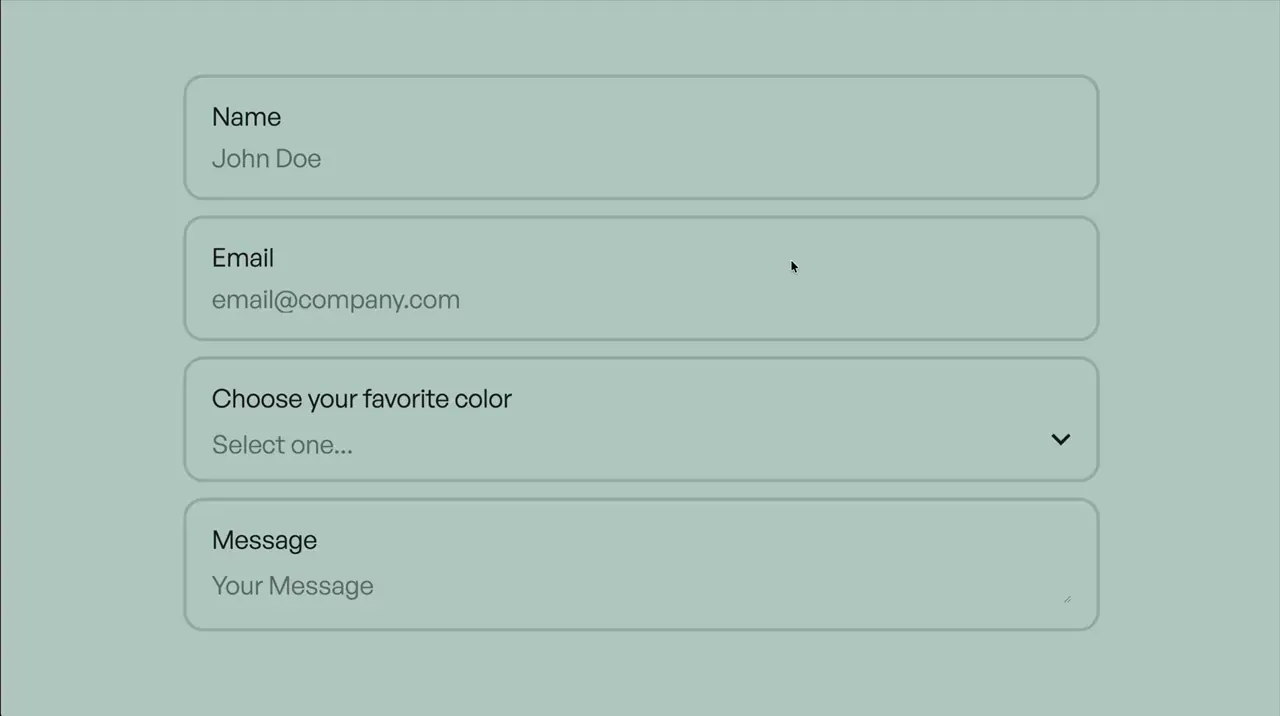
Contained Inputs
Input
Select
Textarea
Form
CSS
input-2
Component
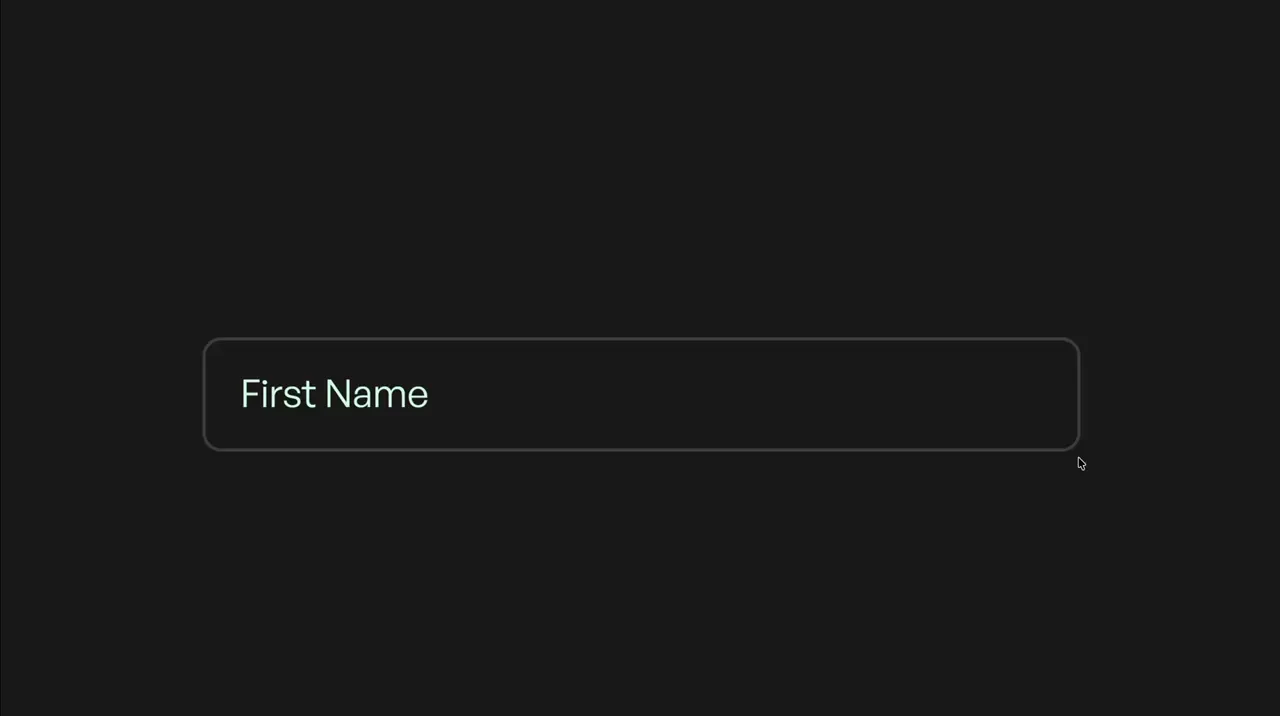
Floating Label
Input
Form
CSS
input-1
Component
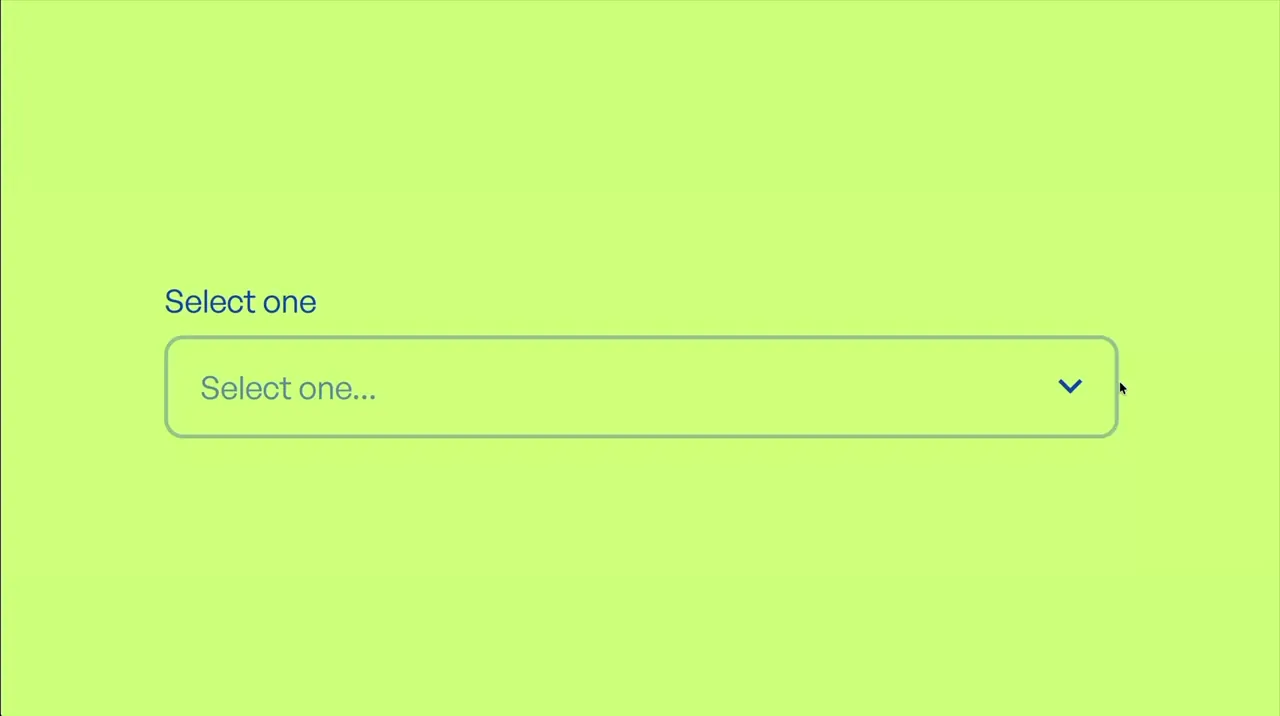
Select Simple
Select
Form
CSS
select-1
Component
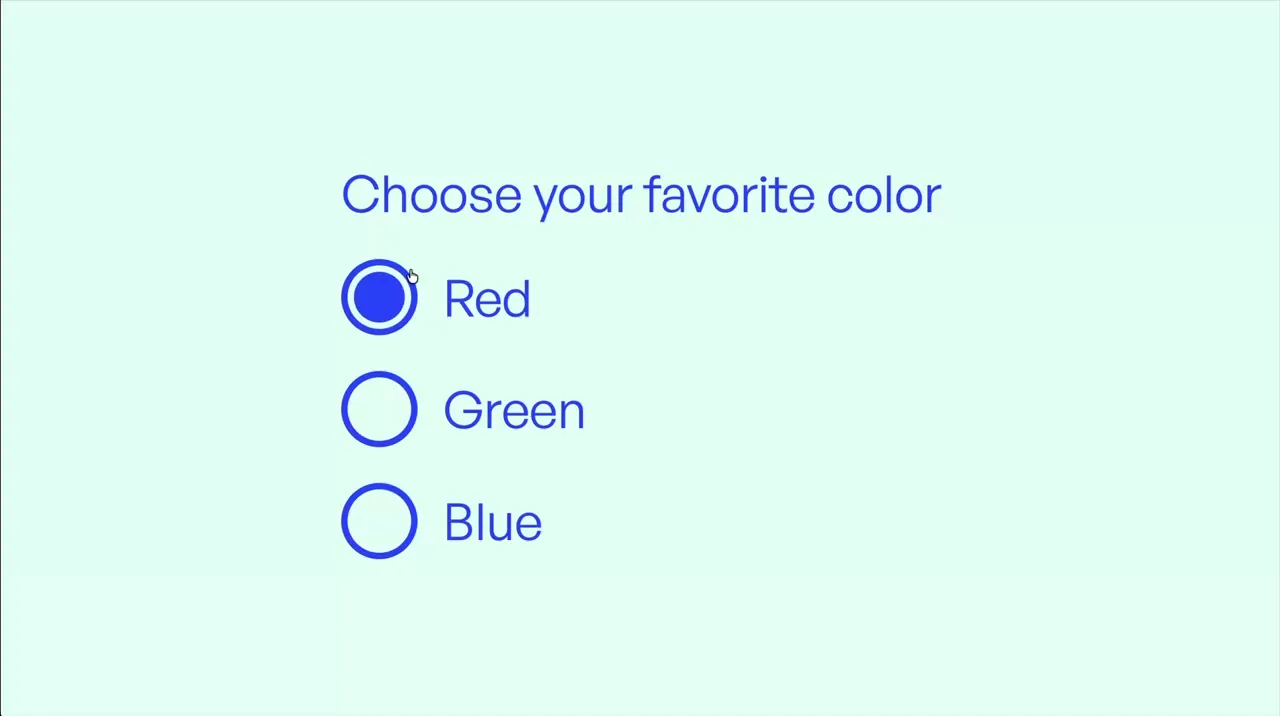
Radio Simple
Radio
Form
CSS
radio-1
Component

Checkbox Simple
Checkbox
Form
CSS
checkbox-1
Component
CSS-Only Height Transition
Hover
CSS
hover-1
Component
Scroll Text Scrub
Scroll
Text Animation
GSAP
ScrollTrigger
Split Text
JS
scroll-4
Component
Section Overlap Parallax
Scroll
GSAP
ScrollTrigger
JS
scroll-3
Component
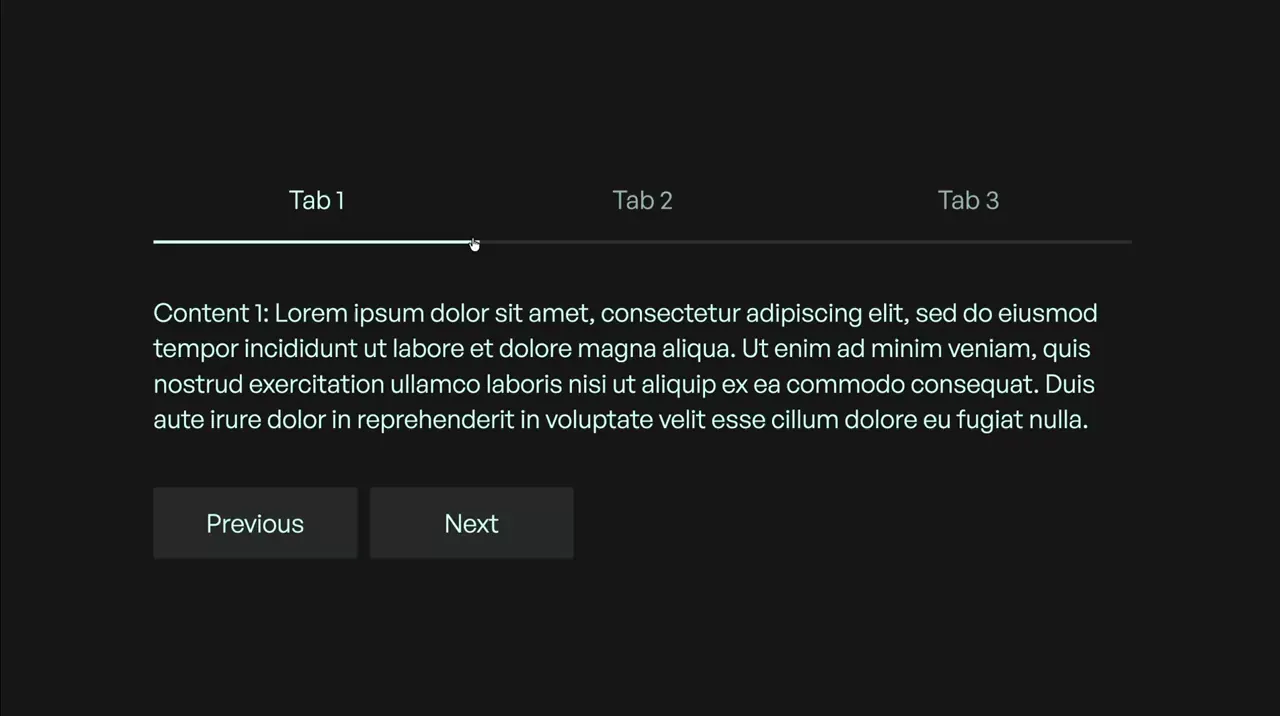
Tabs Simple
Tabs
GSAP
JS
CMS
tab-1
Component
Link Hover Underline
Button
Hover
CSS
link-1
Component
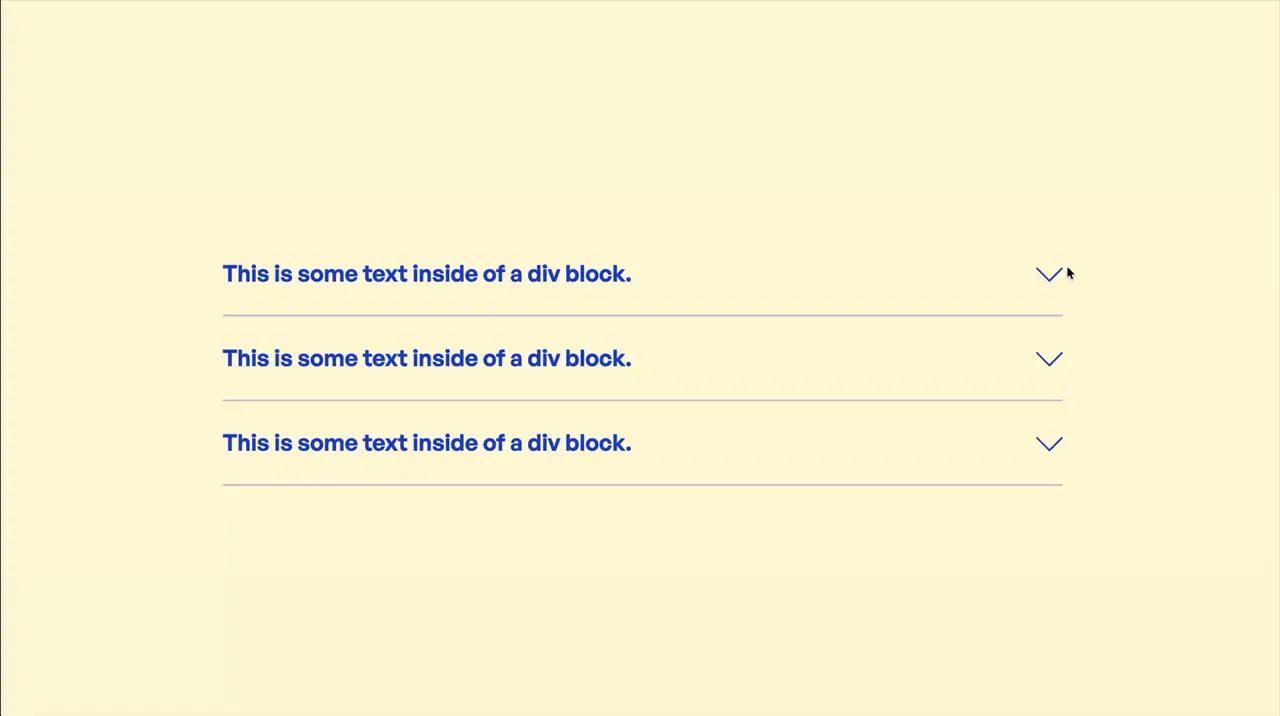
Accordion Simple
Accordion
GSAP
JS
CMS
accordion-1
Component

Spinning Rotation Loop
Loop
Loader
CSS
CSS Animation
rotation-1
Component

Marquee Vertical
Marquee
Loop
CSS
CSS Animation
CMS
marquee-2
Component

Marquee Simple
Marquee
Loop
CSS
CSS Animation
CMS
marquee-1
Component
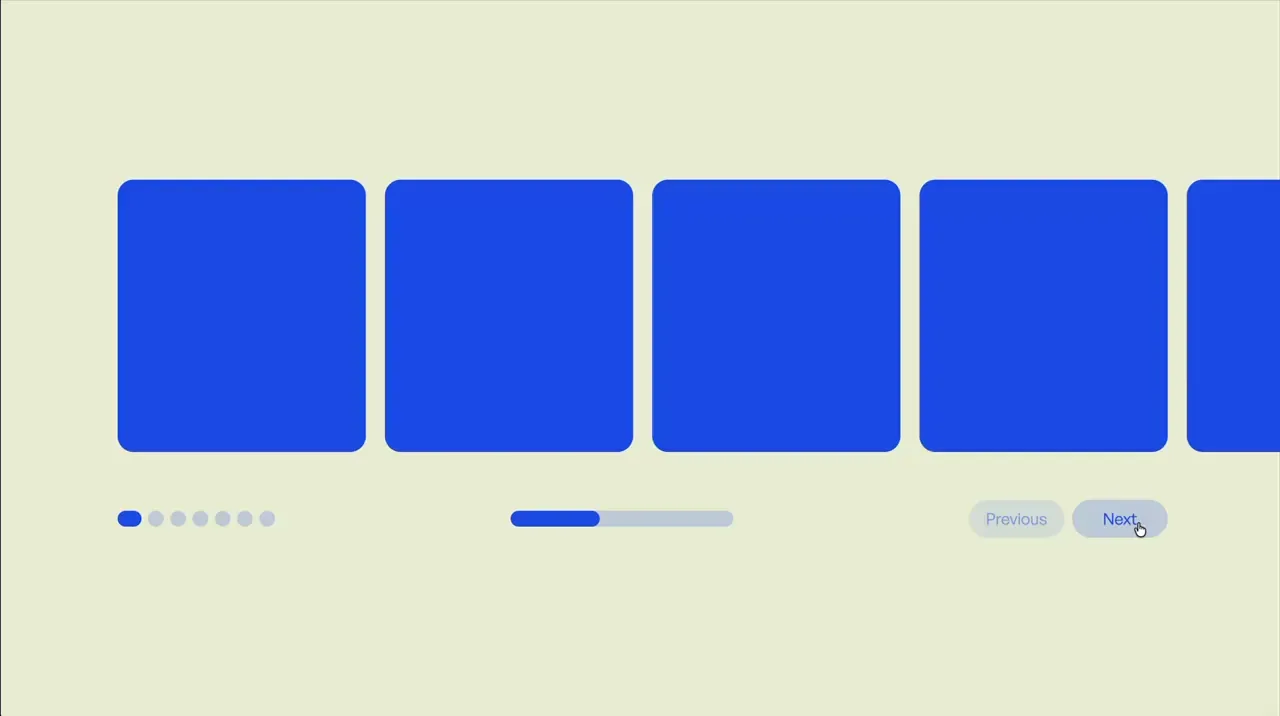
Slider Simple
Slider
Swiper
JS
CMS
slider-2
Component
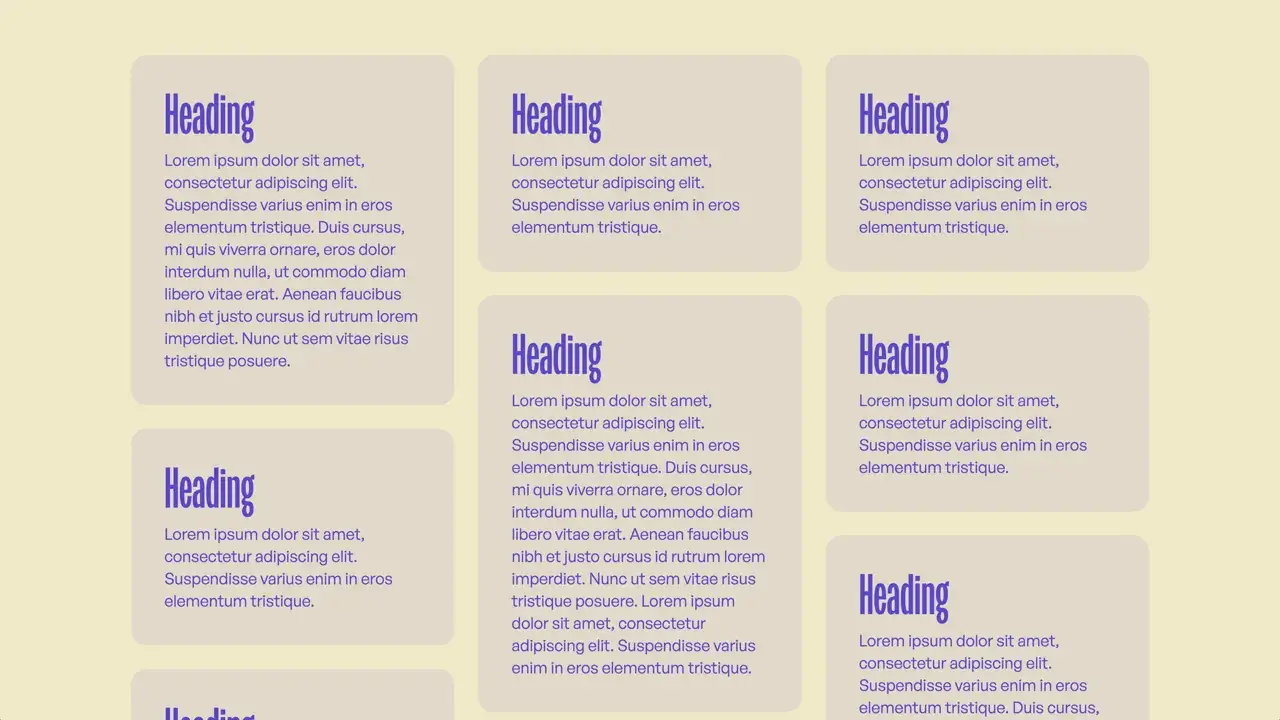
Masonry Grid
Layout
Responsive
Style Panel
CMS
grid-1
Component
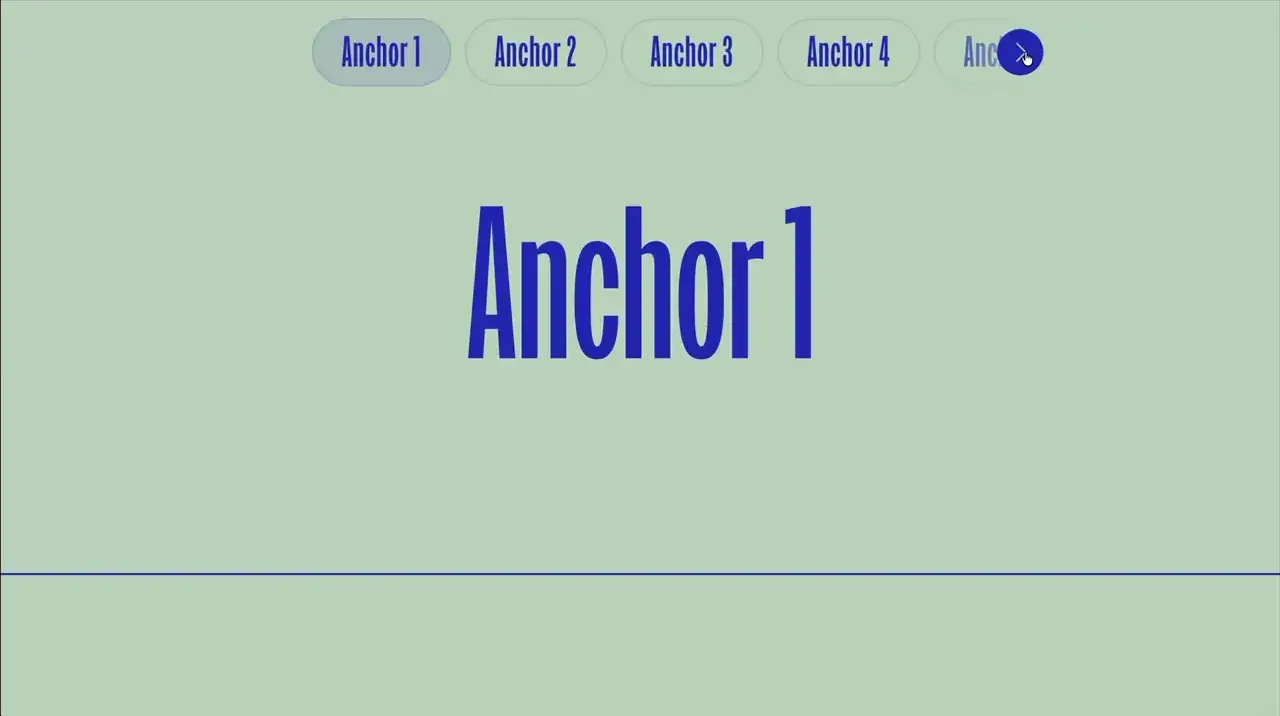
Anchor Link Slider
Scroll
Slider
GSAP
ScrollTrigger
Swiper
JS
CMS
scroll-2
Component

Slides Per Group
Slider
Swiper
JS
CMS
slider-1
Component
Hamburger Two Step
Nav
CSS
hamburger-3
Component

Hamburger Simple
Nav
CSS
hamburger-2
Component
Hamburger Minimal
Nav
CSS
hamburger-1
Component

Spinning Loader Ring
Loop
Loader
CSS
CSS Animation
loader-1
Component
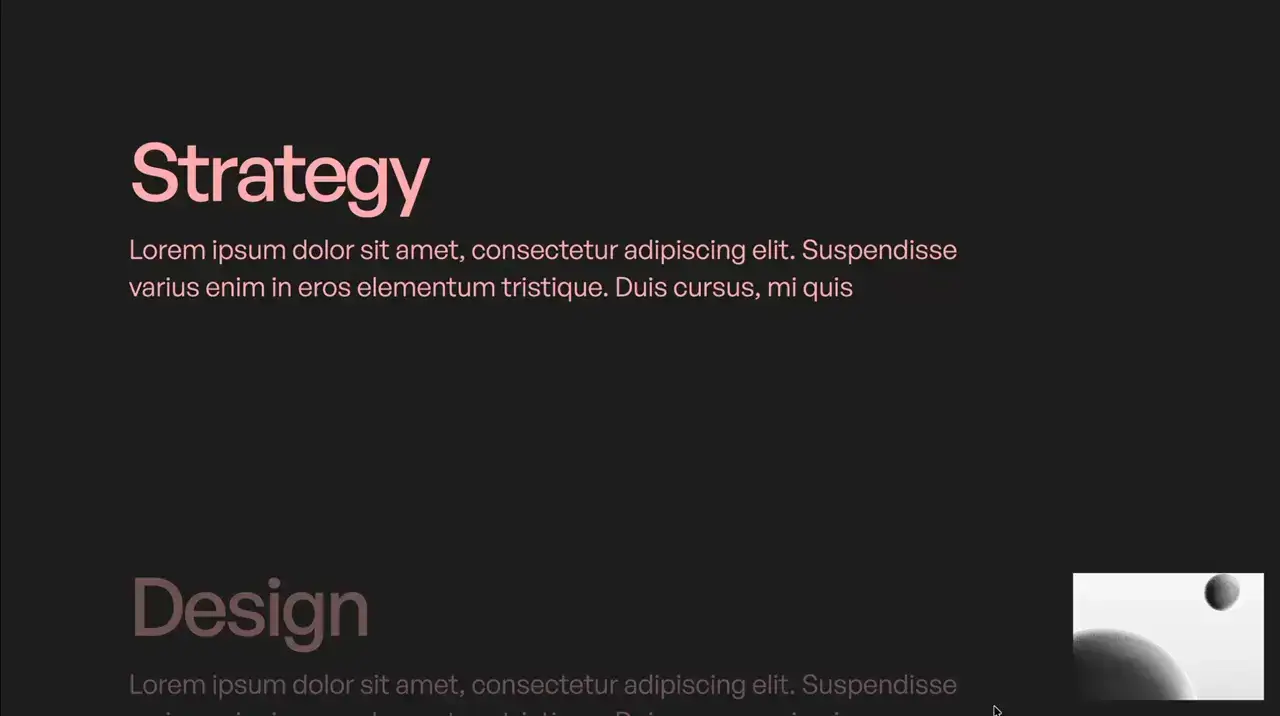
Scroll Class Toggle
Scroll
GSAP
ScrollTrigger
JS
CMS
scroll-1
Component

Click Event That Runs Even On New Elements
Utility
JS
- Normally JavaScript only runs for the elements that were initially there on page load. So any new elements that are added to the page through filtering, looped sliders, or fetched elements wouldn't have the interaction applied. By applying the click event to the document instead and filtering it to a certain class, the action will also apply to any new elements added to the page with that class.
<script>
document.addEventListener("DOMContentLoaded", function () {
	document.addEventListener("click", (e) => {
		if (!e.target.closest(".your-element")) return;
		e.target.classList.toggle("is-active");
	});
});
</script>
click-event-that-runs-even-on-new-elements
Code

DOMContentLoaded
Utility
JS
- DOMContentLoaded runs after the HTML is loaded and parsed so it is safe to target elements with JavaScript.
<script>
document.addEventListener("DOMContentLoaded", function () {
	// run code here
});
</script>
domcontentloaded
Code

Reload Page On Browser Back Button Click
Utility
JS
- In most browsers, pressing the back button pulls up the previous state of the last page instead of refreshing the last page. In cases where this may break interactions or intended functionality, we can force the browser to refresh the page.
<script>
window.onpageshow = function(event) {
	if (event.persisted) window.location.reload();
};
</script>
reload-page-on-browser-back-button-click
Code

Hide Section If Empty CMS
Utility
CMS
CSS
- Give section an attribute name of data-hide-if-empty-cms
- Section will be hidden if it contains no cms items
<style>
[data-hide-if-empty-cms]:not(:has(.w-dyn-item)) {
	display: none;
}
</style>
hide-section-if-empty-cms
Code

Show A Different Div For Each Day Of The Week
Utility
JS
- Apply attribute name of data-week-list to your list containing 7 items
- The first item within the list should be for Sunday
- A different div will be shown for each day of the week
<script>
document.addEventListener("DOMContentLoaded", () => {
	document.querySelectorAll("[data-week-list]").forEach(list => {
		const currentDay = new Date().getDay();
		const items = Array.from(list.children);
		const currentItem = items[currentDay];
		items.forEach(item => {
			if (item !== currentItem) item.remove();
		});
	});
});
</script>
show-a-different-div-for-each-day-of-the-week
Code

Make Item Draggable
Draggable
Utility
JS
- Give item an attribute name of data-draggable-item
<script>
document.addEventListener("DOMContentLoaded", () => {
	let zIndex = 1;
	document.querySelectorAll("[data-draggable-item]").forEach((item) => {
		item.style.touchAction = "none";
		let startX, startY, originX, originY;
		function onPointerDown(e) {
			e.preventDefault();
			item.style.zIndex = ++zIndex;
			startX = e.clientX;
			startY = e.clientY;
			originX = parseFloat(item.dataset.x) || 0;
			originY = parseFloat(item.dataset.y) || 0;
			item.setPointerCapture(e.pointerId);
			item.addEventListener("pointermove", onPointerMove);
			item.addEventListener("pointerup", onPointerUp);
			item.addEventListener("pointercancel", onPointerUp);
		}
		function onPointerMove(e) {
			const dx = e.clientX - startX;
			const dy = e.clientY - startY;
			const x = originX + dx;
			const y = originY + dy;
			item.dataset.x = x;
			item.dataset.y = y;
			item.style.transform = `translate3d(${x}px, ${y}px, 0)`;
		}
		function onPointerUp(e) {
			item.releasePointerCapture(e.pointerId);
			item.removeEventListener("pointermove", onPointerMove);
			item.removeEventListener("pointerup", onPointerUp);
			item.removeEventListener("pointercancel", onPointerUp);
		}
		item.addEventListener("pointerdown", onPointerDown);
	});
});
</script>
make-item-draggable
Code

Show A Random CMS Item
Utility
CMS
JS
- Give collection list a class of your-cms-list
- Only one random child within this element will be shown on page load
<script>
document.addEventListener("DOMContentLoaded", () => {
  document.querySelectorAll(".your-cms-list").forEach(list => {
    const items = Array.from(list.children);
    const randomNumber = Math.floor(Math.random() * items.length);
    items.forEach((item, i) => {
      item.style.display = i === randomNumber ? "" : "none";
    });
  });
});
</script>
show-a-random-cms-item
Code

setTimeout
Utility
JS
- Run code after 1,000 milliseconds (1 second)
<script>
setTimeout(() => {
	// your code here
}, 1000);
</script>
settimeout
Code

setInterval
Utility
JS
- Run code every 1,000 milliseconds (every 1 second)
<script>
setInterval(function () {
	// your code here
}, 1000);
</script>
setinterval
Code

Copy To Clipboard
Utility
JS
- Give the element attribute name and value of data-copy="Your text to copy"
- On click of the element, the attribute value will be copied to clipboard
<script>
document.addEventListener("DOMContentLoaded", function () {
	document.addEventListener("click", (e) => {
		const el = e.target.closest("[data-copy]");
		if (!el) return;
		navigator.clipboard.writeText(el.getAttribute("data-copy") || "");
	});
});
</script>
copy-to-clipboard
Code

Scroll Direction Changed
Scroll
Utility
GSAP
ScrollTrigger
JS
- Run code when page scroll direction changes
<script src="https://cdn.jsdelivr.net/npm/gsap@3.13.0/dist/gsap.min.js"></script>
<script src="https://cdn.jsdelivr.net/npm/gsap@3.13.0/dist/ScrollTrigger.min.js"></script>
<script>
document.addEventListener("DOMContentLoaded", () => {
	gsap.registerPlugin(ScrollTrigger);

	let lastDirection;
	ScrollTrigger.create({
		trigger: document.body,
		start: "top top",
		end: "bottom bottom",
		onUpdate: (self) => {
			if (lastDirection === self.direction) return;
			lastDirection = self.direction;
			if (self.direction === 1) {
				console.log("Page scrolled down");
			} else {
				console.log("Page scrolled up");
			}
		}
	});
});
</script>
scroll-direction-changed
Code

JavaScript matchMedia
Utility
Responsive
JS
- Run JavaScript based on screen size on page load and when crossing between breakpoints
<script>
document.addEventListener("DOMContentLoaded", () => {
	function checkBreakpoint(x) {
		if (x.matches) {
			// desktop code here
		} else {
			// tablet & below code here
		}
	}
	const matchMediaDesktop = window.matchMedia("(min-width: 992px)");
	checkBreakpoint(matchMediaDesktop);
	matchMediaDesktop.addListener(checkBreakpoint);
});
</script>
javascript-matchmedia
Code

Display Number Of CMS Items
Utility
CMS
JS
- Give the section a class of your-section
- Give the cms items a class of your-cms-items
- Give the text element that should display the number of cms items a class of your-number-text
<script>
document.addEventListener("DOMContentLoaded", () => {
 	document.querySelectorAll(".your-section").forEach(component => {
		const itemTotal = component.querySelectorAll(".your-cms-items").length;
		component.querySelectorAll(".your-number-text").forEach(el => el.textContent = itemTotal);
	});
});
</script>
display-number-of-cms-items
Code

CSS Media Query
Responsive
CSS
- Between two screen sizes
<style>
@media screen and (min-width: 992px) and (max-width: 1200px)  {
	body { background-color: red; }
}
</style>- Desktop only
<style>
@media screen and (min-width: 992px) {
	body { background-color: red; }
}
</style>- Tablet & below only
<style>
@media screen and (max-width: 991px) {
	body { background-color: red; }
}
</style>- Non-touch devices only
<style>
@media (pointer: fine) {
	body { background-color: red; }
}
</style>- Prefers reduced motion
<style>
@media screen and (prefers-reduced-motion: reduce) {
	body { background-color: red; }
}
</style>- Prefers contrast
<style>
@media (prefers-contrast: more) {
	body { background-color: red; }
}
</style>- Prefers dark mode
<style>
@media screen and (prefers-color-scheme: dark) {
	body { background-color: red; }
}
</style>
css-media-query
Code

Hide Scrollbars
Utility
Style
CSS
- Give element an attribute name of data-hide-scrollbar
<style>
[data-hide-scrollbar]::-webkit-scrollbar {
	display: none;
}
[data-hide-scrollbar] {
	-ms-overflow-style: none;
	scrollbar-width: none;
}
</style>
hide-scrollbars
Code

CSS Nth Child
Utility
Layout
CSS
<style>
/* Create a repeating pattern every 3 items */
.your-cms-item:nth-child(3n+1) { background-color: red; }
.your-cms-item:nth-child(3n+2) { background-color: blue; }
.your-cms-item:nth-child(3n+3) { background-color: green; }

/* Create a repeating pattern every 3 items while targeting the item's children */
.your-cms-item:nth-child(3n+1) .item-child { background-color: yellow; }
.your-cms-item:nth-child(3n+2) .item-child { background-color: green; }
.your-cms-item:nth-child(3n+3) .item-child { background-color: purple; }

/* Target the 1st, 2nd, and 3rd item with no repeating pattern */
.your-cms-item:nth-child(1) { background-color: red; }
.your-cms-item:nth-child(2) { background-color: blue; }
.your-cms-item:nth-child(3) { background-color: green; }
</style>
css-nth-child
Code

GSAP Scroll Snap
Scroll
Utility
GSAP
ScrollTrigger
JS
- Give the section an attribute name of data-scroll-snap
- When we stop scrolling, the page will scroll to the nearest section with that attribute
<script src="https://cdn.jsdelivr.net/npm/gsap@3.13.0/dist/gsap.min.js"></script>
<script src="https://cdn.jsdelivr.net/npm/gsap@3.13.0/dist/ScrollTrigger.min.js"></script>
<script>
document.addEventListener("DOMContentLoaded", () => {
	gsap.registerPlugin(ScrollTrigger);
	document.querySelectorAll("[data-scroll-snap]").forEach((component) => {
		ScrollTrigger.create({
			trigger: component,
			start: "top top",
			end: "bottom top",
			scrub: true,
			snap: {
				snapTo: [0, 1],
				duration: { min: 0.05, max: 0.3 },
				delay: 0,
				ease: "power1.inOut"
			}
		});
	});
});
</script>
gsap-scroll-snap
Code

GSAP matchMedia
Utility
Responsive
GSAP
JS
- Run GSAP code only for certain screen sizes
<script>
document.addEventListener("DOMContentLoaded", () => {
	// only on the desktop breakpoint
	gsap.matchMedia().add("(min-width: 992px)", () => {
		// your gsap timeline here
	});
});
</script>- Run GSAP code with multiple breakpoints
<script>
document.addEventListener("DOMContentLoaded", () => {
	let mm = gsap.matchMedia();
	// on desktop
	mm.add("(min-width: 992px)", () => {
		// your gsap timeline here
		return () => {
			// optional: clean up non-gsap code when leaving this breakpoint
		};
	});
	// on tablet and below
	mm.add("(max-width: 991px)", () => {
		// your gsap timeline here
	});
	// on tablet only
	mm.add("(max-width: 991px) and (min-width: 768px)", () => {
		// your gsap timeline here
	});
});
</script>
gsap-matchmedia
Code

Refresh ScrollTrigger On Scroll Into View
Utility
Scroll
GSAP
ScrollTrigger
JS
- Give an element or section the attribute name of data-refresh-scrolltrigger
- When the element first enters view, it will refresh ScrollTrigger's markers
- This is helpful if ScrollTrigger's positions are getting out of sync from the page height changing.
<script>
document.addEventListener("DOMContentLoaded", () => {
	if (typeof ScrollTrigger === "undefined") return;
	document.querySelectorAll("[data-refresh-scrolltrigger]").forEach(target => {
		const observer = new IntersectionObserver((entries, observerInstance) => {
			entries.forEach(entry => {
				if (!entry.isIntersecting) return;
				ScrollTrigger.refresh();
				observerInstance.unobserve(entry.target);
			});
		}, { threshold: 0.1 });
		observer.observe(target);
	});
});
</script>
refresh-scrolltrigger-on-scroll-into-view
Code

Close Native Dropdown
Utility
Dropdown
JS
- Give any child of the dropdown an attribute name of data-dropdown-close to close the dropdown on click of that child
<script>
document.addEventListener("DOMContentLoaded", function () {
	document.addEventListener("click", (e) => {
		if (!e.target.closest("[data-dropdown-close]")) return;
		const dropdown = e.target.closest(".w-dropdown");
		dropdown?.dispatchEvent(new CustomEvent("w-close", { bubbles: true }));
		dropdown?.dispatchEvent(new CustomEvent("w-dropdown", { bubbles: true }));
	});
});
</script>
close-native-dropdown
Code

Animate Item Based On Position Within Parent
Utility
GSAP
JS
- Animate item based on its horizontal position within parent
- When .item is horizontally centered within .your-section, it will be at the middle of the GSAP Timeline
- Animate the item's transforms or its parent's transform by placing it in a slider, marquee, or horizontal scroll
<script src="https://cdn.jsdelivr.net/npm/gsap@3.13.0/dist/gsap.min.js"></script>
<script>
document.addEventListener("DOMContentLoaded", () => {
	document.querySelectorAll(".your-section").forEach((component) => {

		component.querySelectorAll(".item").forEach((item) => {
			gsap.context(() => {
				let tl = gsap.timeline({ paused: true, defaults: { ease: "none" } });
				tl.fromTo(item, { opacity: 0.1, scale: 0.5 }, { opacity: 1, scale: 1 });
				tl.fromTo(".item-image", { scale: 1.2 }, { scale: 1 }, "<");

				tl.to(item, { opacity: 0.1, scale: 0.5 });
				tl.to(".item-image", { scale: 1.2 }, "<");

				function animate() {
					const rect = item.getBoundingClientRect();
					const compRect = component.getBoundingClientRect();
					let progress = Math.max(0, Math.min(1, (compRect.right - rect.left) / (rect.width + compRect.width)));
					tl.progress(progress);
					requestAnimationFrame(animate);
				}
				requestAnimationFrame(animate);
			}, item);
		});
	});
});
</script>- Animate item based on its vertical position within parent
- When .item is vertically centered within .your-section, it will be at the middle of the GSAP Timeline
- Animate the item's transforms or its parent's transform by placing it in a slider, marquee, or scroll
<script src="https://cdn.jsdelivr.net/npm/gsap@3.13.0/dist/gsap.min.js"></script>
<script>
document.addEventListener("DOMContentLoaded", () => {
	document.querySelectorAll(".your-section").forEach((component) => {

		component.querySelectorAll(".item").forEach((item) => {
			gsap.context(() => {
				let tl = gsap.timeline({ paused: true, defaults: { ease: "none" } });
				tl.fromTo(item, { opacity: 0.1, scale: 0.5 }, { opacity: 1, scale: 1 });
				tl.fromTo(".item-image", { scale: 1.2 }, { scale: 1 }, "<");

				tl.to(item, { opacity: 0.1, scale: 0.5 });
				tl.to(".item-image", { scale: 1.2 }, "<");

				function animate() {
					const rect = item.getBoundingClientRect();
					const compRect = component.getBoundingClientRect();
					let progress = Math.max(0, Math.min(1, (compRect.bottom - rect.top) / (rect.height + compRect.height)));
					tl.progress(progress);
					requestAnimationFrame(animate);
				}
				requestAnimationFrame(animate);
			}, item);
		});
	});
});
</script>
animate-item-based-on-position-within-parent
Code